Stop Re-Copying the Same Content in Windows 11
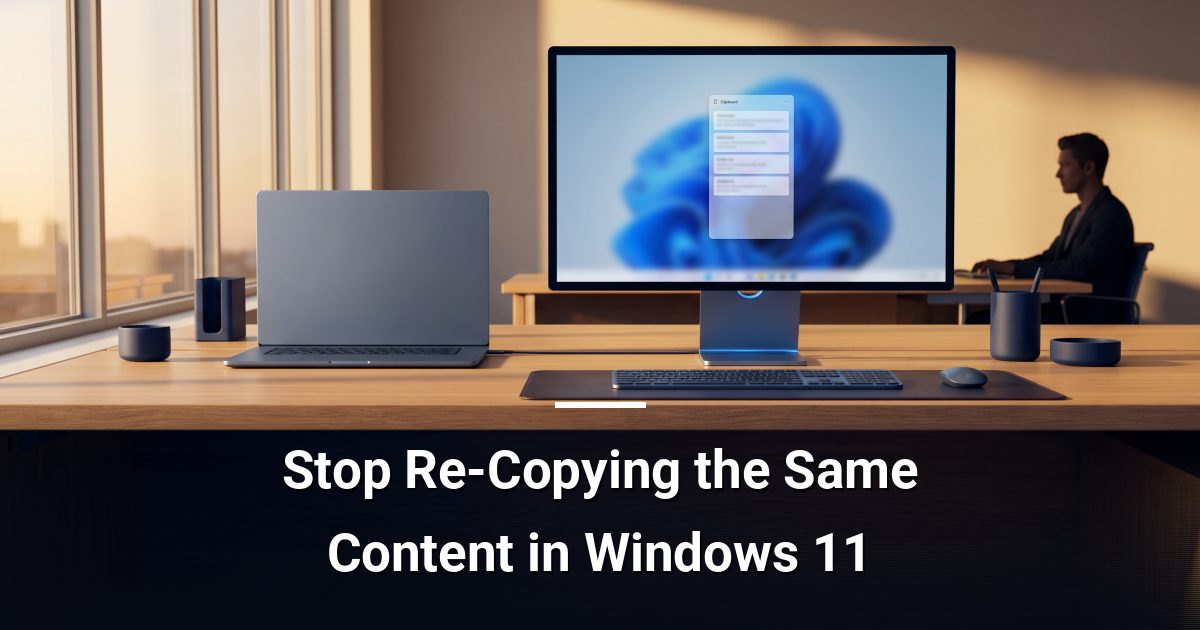
Windows 11 clipboard history stores up to 25 copied items so you can paste any of them instantly — no re-copying, no lost snippets, no wasted time.
Key Takeaways
- Enable Windows 11 clipboard history in under a minute using Windows key + V or the Settings toggle.
- Pin frequently reused snippets so they survive restarts and stay at the top of your clipboard panel.
- Sync clipboard text across signed-in Windows 11 devices to eliminate copy-pasting between machines.
- Clear sensitive copied items immediately after use — clipboard history is not encrypted by default.
- Build a personal snippet library of your five to ten most-used text blocks for instant daily access.
Windows 11 clipboard history is a built-in feature that stores up to 25 recently copied items — text, HTML, and images — so you can paste any of them at any time without re-copying. Enabling it takes under a minute and immediately removes one of the most common sources of repetitive, low-value work in a typical office day.
How Do You Turn On Clipboard History?
The feature is off by default. Here is how to switch it on:
- Press Windows key + V. A prompt will appear asking you to enable the feature.
- Click Turn on. Clipboard history is now active.
- Alternatively, go to Settings → System → Clipboard and toggle Clipboard history to On.
From this point forward, every item you copy is added to a scrollable list. Press Windows key + V at any time to open the clipboard panel and select exactly what you want to paste.
How Do You Pin Items You Use Every Day?
Pinning is the feature most people overlook. By default, clipboard history clears itself when you restart your computer — but pinned items are exempt and persist across reboots.
- Press Windows key + V to open the clipboard panel.
- Hover over any item. A small toolbar appears.
- Click the pin icon to lock that item in place.
Good candidates for pinning include your office address, standard email sign-offs, account numbers you reference constantly, and boilerplate paragraphs you paste into documents regularly. Pinned items stay at the top of your clipboard panel, so they are always one keystroke away.
Why Sync Your Clipboard Across Devices?
If you work across a desktop and a laptop — or hand off tasks between machines — clipboard sync removes a genuine friction point. Copy something on one device and paste it on another without emailing it to yourself.
- Go to Settings → System → Clipboard.
- Under Sync across your devices, sign in with your Microsoft account if prompted.
- Choose Automatically sync text that I copy for seamless cross-device paste, or select Never automatically sync to sync manually on demand.
Only text syncs across devices — images and files remain local. Keep this in mind if your workflow relies heavily on copied screenshots or file references.
What About Security and Sensitive Data?
Clipboard history is stored temporarily in memory and is not encrypted by default. If you copy a password, a card number, or any sensitive value, clear it promptly.
- To delete a single item: open the clipboard panel, hover over the item, and click the delete icon.
- To clear everything at once: click Clear all at the top of the panel.
- To clear automatically on restart: leave items unpinned — they are removed when Windows restarts.
A better long-term habit is to use a dedicated password manager rather than copying credentials through the clipboard at all. That keeps sensitive data out of the history entirely.
Getting the Most Out of It Day to Day
A few practical adjustments make clipboard history genuinely useful rather than just a novelty:
- Build a personal snippet library by pinning the five to ten text blocks you paste most often.
- Use Windows key + V as your default paste shortcut instead of Ctrl + V — it takes only a second longer and gives you full control over what gets pasted.
- Review and clear unpinned history at the end of each day as a simple data hygiene habit.
Ready to Work Smarter Across Your Devices?
Small productivity improvements like clipboard history add up quickly across a team. If you want a broader look at how your technology setup is supporting — or slowing down — your operations, book a no-obligation IT assessment with MYDWARE and get a clear picture of where your systems can work harder for you.
Darryl Cresswell
CEO & President
MYDWARE IT Solutions Inc.