Configure Windows 11 Focus Sessions for Deep Work
Windows 11 Focus Sessions let you run timed, distraction-free work intervals using a built-in tool. Configure them in minutes with no extra software.
Key Takeaways
- Windows 11 Focus Sessions are built into the Clock app and require no third-party software to use.
- Do Not Disturb activates automatically when a session starts, silencing most notification banners and badges.
- Linking Microsoft To Do lets you assign a single named task to each session, reducing scope creep.
- Consistency across multiple daily sessions matters more than choosing the perfect session length.
- Reviewing your priority notifications list in Settings tightens interruption control beyond the default.
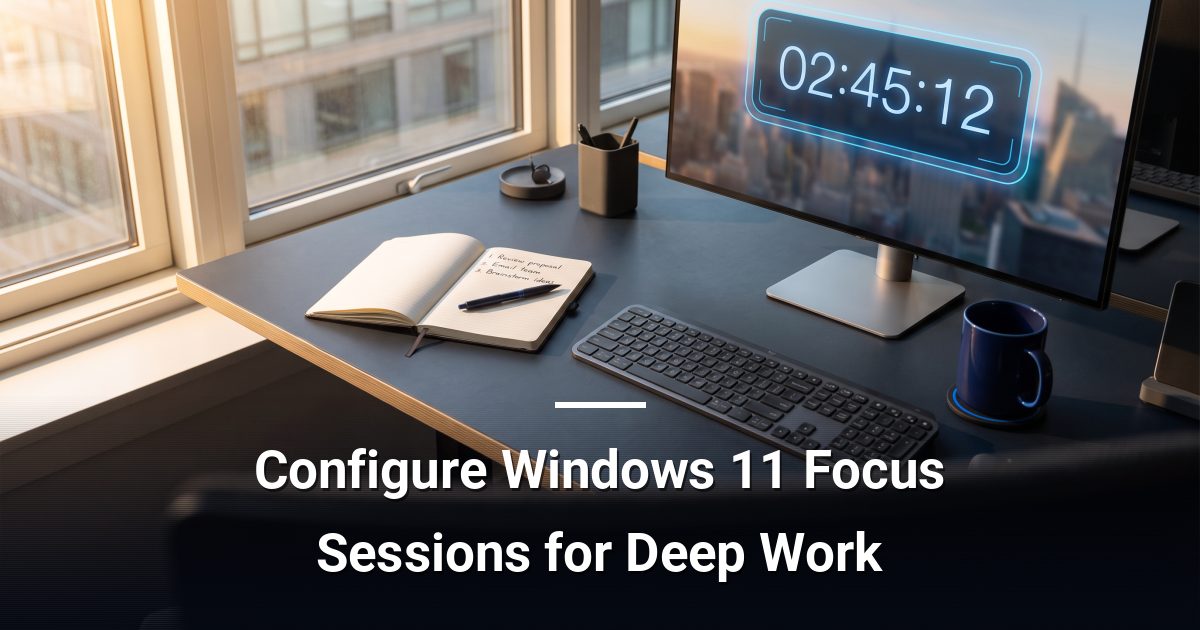
Windows 11 Focus Sessions are a built-in productivity feature inside the Clock app that schedules timed work intervals, silences notifications automatically via Do Not Disturb, and connects your task list through Microsoft To Do — all without installing any third-party software.
What Are Focus Sessions and Why Do They Work?
Focus Sessions apply structured time-blocking: you work in defined intervals separated by short breaks. Working in focused bursts with deliberate pauses reduces mental fatigue and helps you complete deep-work tasks more consistently. The feature is already on your device — it simply needs to be configured.
How Do You Open Focus Sessions?
Press the Windows key, type Clock, and open the app. In the left-hand navigation panel, select Focus Sessions. If you have never opened it before, the app will prompt you to link your Microsoft account, which also connects Microsoft To Do for task integration.
Configuring Your First Session
1. Set Your Session Length
Use the dial or the plus and minus buttons to choose your work interval. A 45- to 60-minute block suits most sustained tasks. If you are new to time-blocking, start at 25 minutes and increase gradually as your concentration builds.
2. Understand the Built-In Break Structure
Focus Sessions inserts a five-minute break automatically after each interval when your total session runs longer than 30 minutes. For sessions over an hour, a longer break is inserted at the halfway point. You cannot change break durations inside the app, so plan your total session length with that in mind.
3. Link Microsoft To Do
Below the timer you will see a Tasks panel. Sign in with your Microsoft account to pull in your To Do lists. Select the specific task you intend to work on before starting the timer. Having a single named task visible is one of the most effective ways to prevent scope creep during a session.
4. Enable Focus Music
The Clock app offers optional ambient audio — a low, steady background sound designed to mask office noise. Toggle it on beneath the timer controls. Volume adjusts independently of your system volume, so it will not interfere with any alerts you choose to allow through.
5. Start the Session
Press Start focus session. Windows 11 activates Do Not Disturb immediately, suppressing notification banners and badge alerts from most apps. A small timer appears in your taskbar so you can check remaining time without switching windows.
How Do You Reduce Interruptions That Still Slip Through?
Do Not Disturb does not block every alert by default. To tighten control:
- Go to Settings > System > Notifications and review which apps are marked as priority.
- Remove any app that does not require an immediate response from that priority list.
- Set your status to away or busy in Teams or Outlook before starting, so colleagues know not to expect an instant reply.
Why Repetition Matters More Than Perfect Timing
The real value of Focus Sessions comes from daily repetition, not from finding the ideal interval length. Block two or three sessions into your calendar each morning before reactive tasks fill your schedule. Assign your single most important piece of work to the first session of the day.
Even two focused 45-minute blocks each day compound into meaningful progress across a week. Over time, your team will adjust to your availability windows and the structured rhythm becomes self-reinforcing.
Make the Most of What Is Already on Your Device
Configuring Windows 11 Focus Sessions takes under five minutes and costs nothing beyond what is already installed. If you want to ensure your organisation's devices, software configurations, and security settings are all working as efficiently as they should, book a free IT and cybersecurity risk assessment with MYDWARE to find out exactly where you stand.
Darryl Cresswell
CEO & President
MYDWARE IT Solutions Inc.